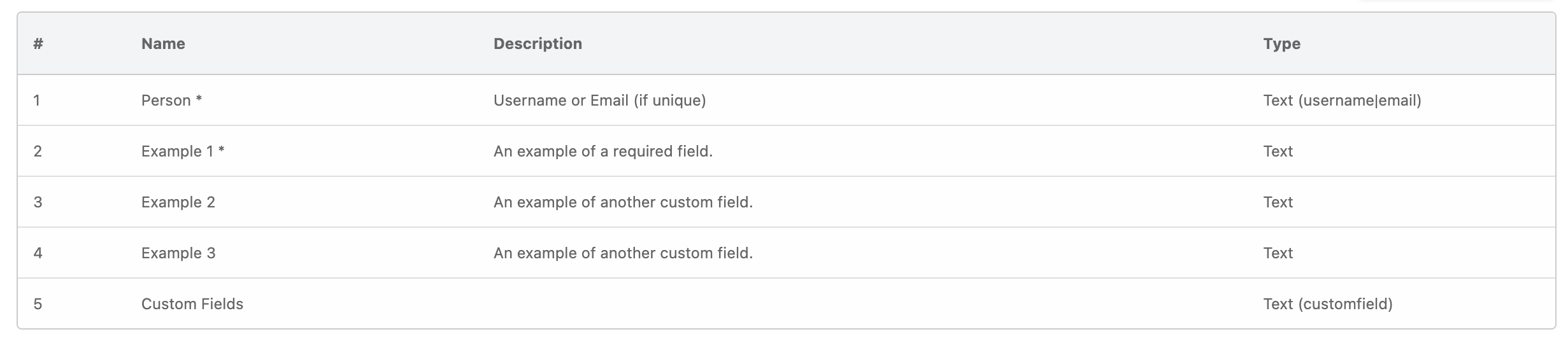
Having some trouble with the upload file for Custom user Imports. I have a fairly large set of fields that need to be imported, over 52 of them 9 not user if this is the problem).
When going to Home > System Admin > Import From File, the and hit the Export Columns button, the massive list of fields are not there, only one that says “Person”. No errors in the Apache log so not sure what could be wrong, please advise.
In this case, because custom import data can be unique to each school, Gibbon does not already have an importer for your specific data. We provide an example import, which is the Custom Fields - User Context import that you’ve used.
The importer file is in: resources/imports/usersCustomData.yml. You can make a copy and put it in the custom imports folder, based on the settings at the top of the import page:
This file is a yml file, which is a type of text file. You can edit it to add the custom fields you’d like to import, and can duplicate the file to make more custom field importers for your school’s needs.
Thank you so much for the further information. I will use it as we progress.
I have managed to fix my issue; we needed one large file as all the data pertained to a user.
The problem was indentation; all the fields need to follow the same spacing and alignment as gibbonPersonID: . There are so called yaml auto aligners out there which may help ( prettier ) but using that with the combo of vscode worked for me. You can easily see misalignment issues and vscode at times flags errored lines as well. The other tip is to rather not use Tab although it’s very tempting, instead use spaces.
We now have a need for further custom imports ( Admission custom imports to be exact ). Followed the above info and place in the /imports folder ( had to create this location ) but the custom imports file is not present in the frontend. No errors in the logs or escaped gibbons.
If you can point us in the correct direction, will be most grateful.
Annd we have the multiple files working , shout out to Over Drive! FYI - to those looking to do the same, need to have the files placed in /base_dir/uploads/imports/