Meetings. Schools have lots of meetings. You’ll be in meetings this year. But how do you manage meetings in Gibbon?
Over the summer I had a chance to check out how brilliant the Gibbon Calendar is (Other menu -–> Calendar). @sandra, @Ali and the rest of the team have given us a really powerful and awesome feature that is probably being overlooked. The Gibbon Calendar will allow you to create events, show only those events to their participants, so you don’t get overwhelmed with seeing events you’re not part of, and add a layer with these events which is shown on your “My Timetable” panel automagically on the home page. It’s perfect for meetings! Problem solved.
However, what I wasn’t so keen on was creating an event instance for every meeting. A department meeting every two weeks meant creating twenty-ish events (as far as I can see, and my apologies to the team if I have missed something obvious). There doesn’t seem to be any recurrence option when you create an event, and having meetings on a two-week timetable meant having to have a copy of the school calendar open to work out which date now corresponded to a “Tuesday in Week B” after a holiday.
So things like this that are a bit manual and repetitive could do with some automation. So… presenting “Meetings Manager” module! Let’s automate all the things! It lets a (small number of) authorised staff define recurring meetings once at the start of the academic year and have Gibbon automatically generate the correct native Gibbon Calendar events - with the right participants, on the right dates using what Gibbon already knows - reusing Gibbon’s own Calendar, not some extra bolt on, workaround or kludge. So events can still be managed in Gibbon Calendar after the fact (but it’s far easier in Meetings Manager!)
How to meeting
You can add/edit/remove meetings by going into Other menu –> Meetings Manager.
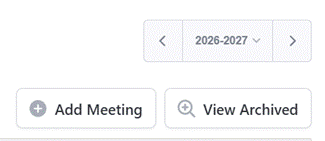
Click Add meeting button.
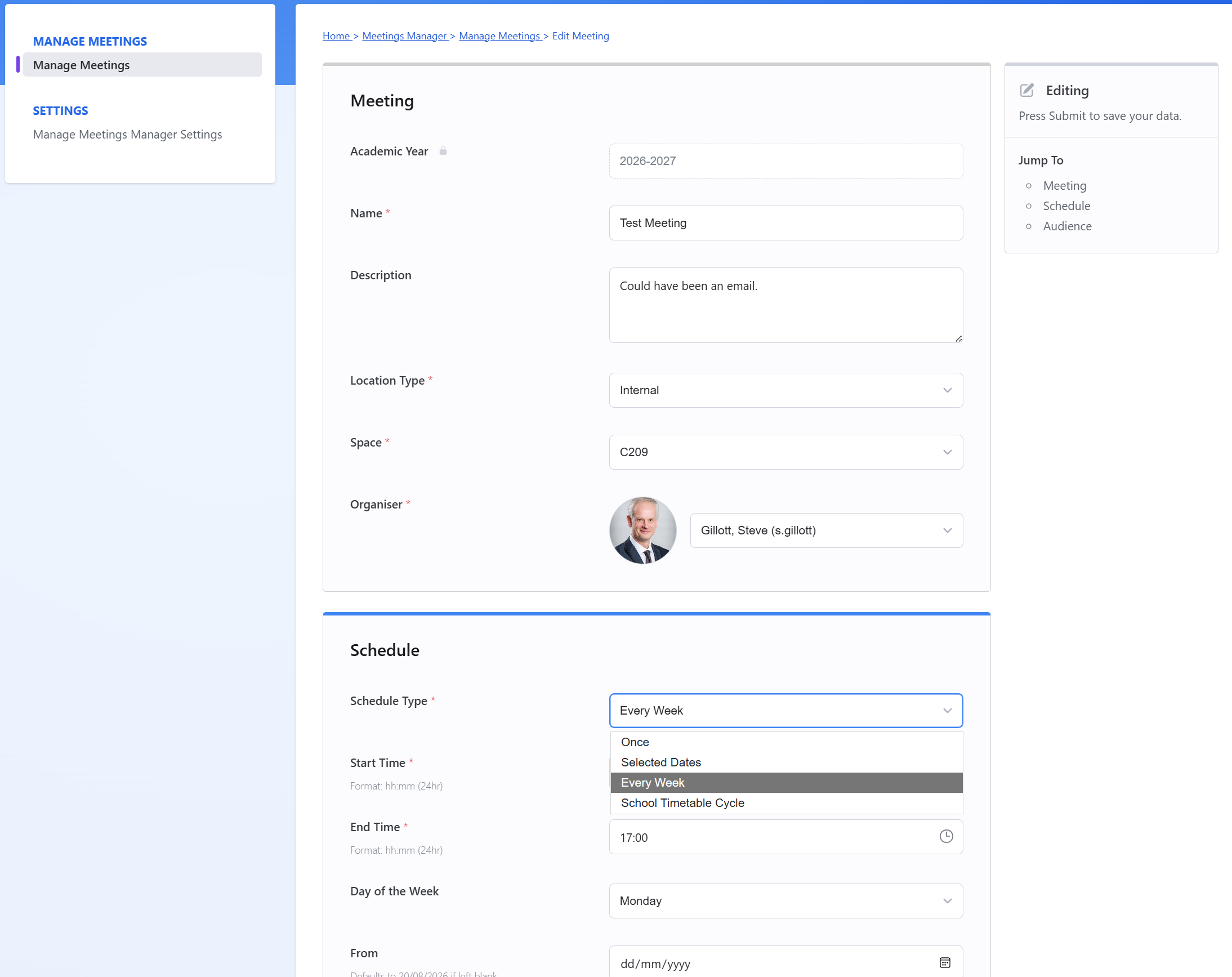
Fill in the details of the meeting:
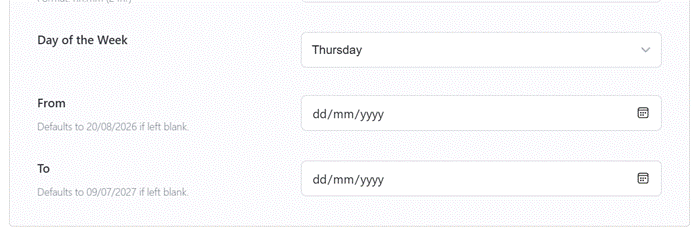
For weekly meetings, choose the day of the week. Leave From and To as they are for the whole school year, or change them to suit your date range.
You can also choose in “Schedule Type” -
“Once” for a one-off meeting;
“Selected Dates” for irregular meetings;
“Every Week” for every Thursday (that the school is open for, it won’t create them during holidays or suspended timetable days - which can also be overridden if necessary);
“School Timetable Cycle” for things like a Department meeting on Week B Tuesdays (for example.)
If you’ve set up special days and tie days to dates, this bit is super easy!
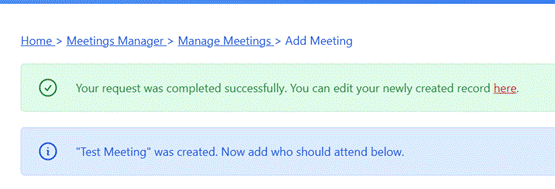
Press Submit, because it has to save the meeting first before you can add people (or selected dates) to it.
It will now show this – click on the link in the green box to edit the newly created record. (This is the only confusing it)
Scroll down to Audience (which I should probably rename to Participants, thinking about it)
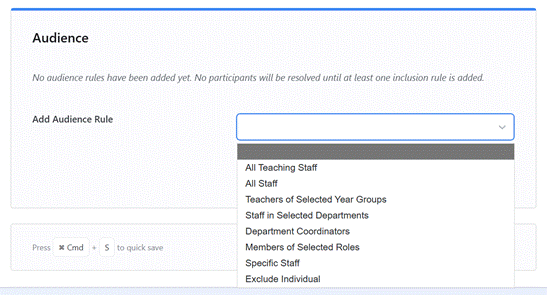
So for example you can choose “Teachers of Selected Year Groups” and then multi select Grades 6-12. Click Add Rule, and anyone that teaches Grades 6-12 are included in that meeting. You didn’t have to look them up! Bosh!
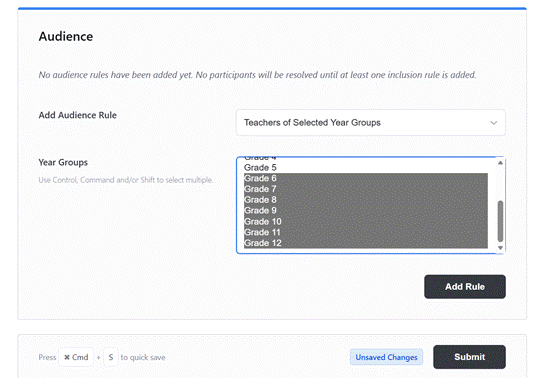
Repeat as often as you need to add audience groups. Yes, you can also add or remove individuals. Then click Submit.
Go back to Manage Meetings from the menu and click the Preview button next to your new meeting. (If you got something wrong with the meeting, you can go back and edit it from here too)

In Preview, you can verify the membership of the meeting (add or remove people as well) and include/exclude dates from the Academic Year by checking/unchecking the checkboxes.
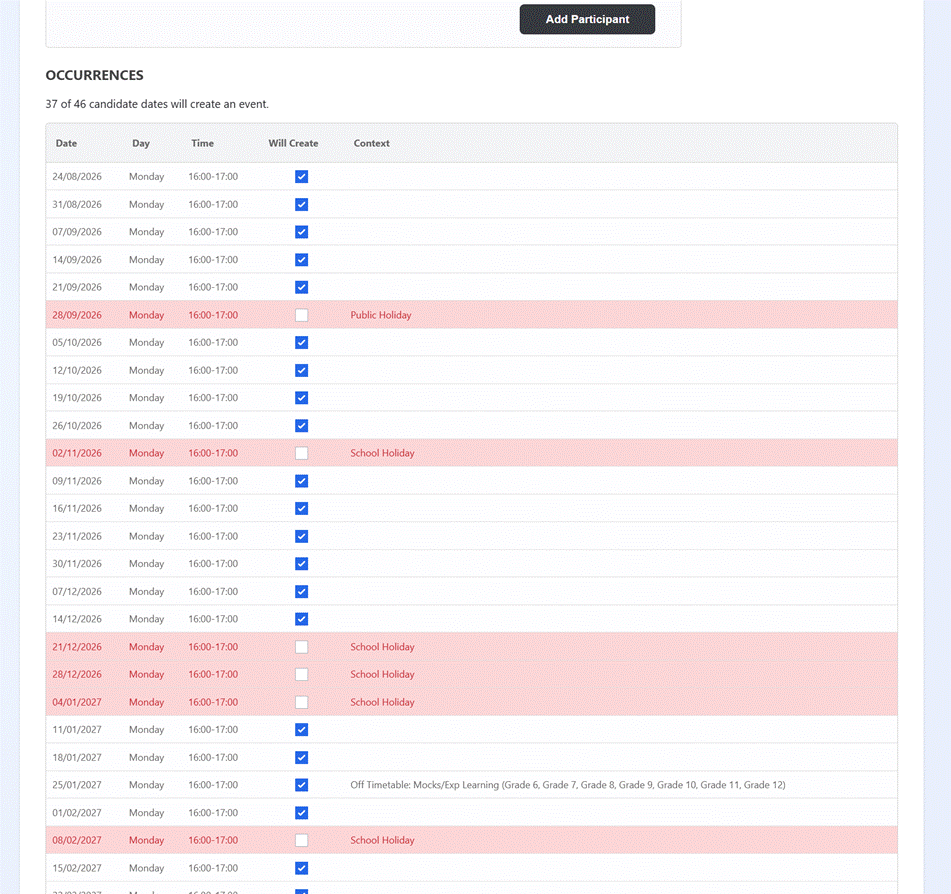
For example:

Then down at the bottom click “Create Meeting Series”.

Gibbon’s Calendar will now be populated with all the meetings! People who are in those meetings get to see it on their timetables automatically, because it’s just using Gibbon’s Calendar. Brilliant.
If something changes part-way through the year, you can either:
- Archive the meeting with the archive button (that will remove all future meetings from the calendar and people’s timetables)
- If new people arrive or people leave, as long as roles and class memberships are kept up to date, you can click the people button and it will resync the membership of the meeting events to the new roles and membership lists. All done from Meetings Manager.
You can grab Meetings Manager module from Releases · sgillott/module-meetingsManager
Any feedback is very welcome. I hope it’s useful.
(Also - no, it doesn’t sync with Google or Outlook calendars).