Hello Team,
Some lessons require decimal values. How do I add decimal values to the managed grade scale?
Thank you.
Regards,
Imam Nursianto
Hello Team,
Some lessons require decimal values. How do I add decimal values to the managed grade scale?
Thank you.
Regards,
Imam Nursianto
Hi @imamnurs
Navigate to School Admin → Edit Grade Scales → Click on ‘Add’ to add a Grades. Here you can add Grade with decimal values. Hope that helps. Thanks!
Thanks, Ali.
But what if my grade range is 50.00 to 100.00? Do I have to add 50.00, 50.01, 50.02, 50.99, up to 100.00? Of course, that would require a tremendous amount of effort.
Is there a simpler way?
Regards,
Imam Nursianto
@imamnurs Under System Admin > Import from File you’ll see the option, under School Admin, to import custom grade scales. This will allow you to add 50.01, 50.02 etc. from a CSV or Excel file—no need to do it all through the grade scale interface!
Hi @imamnurs
This is what you could do:
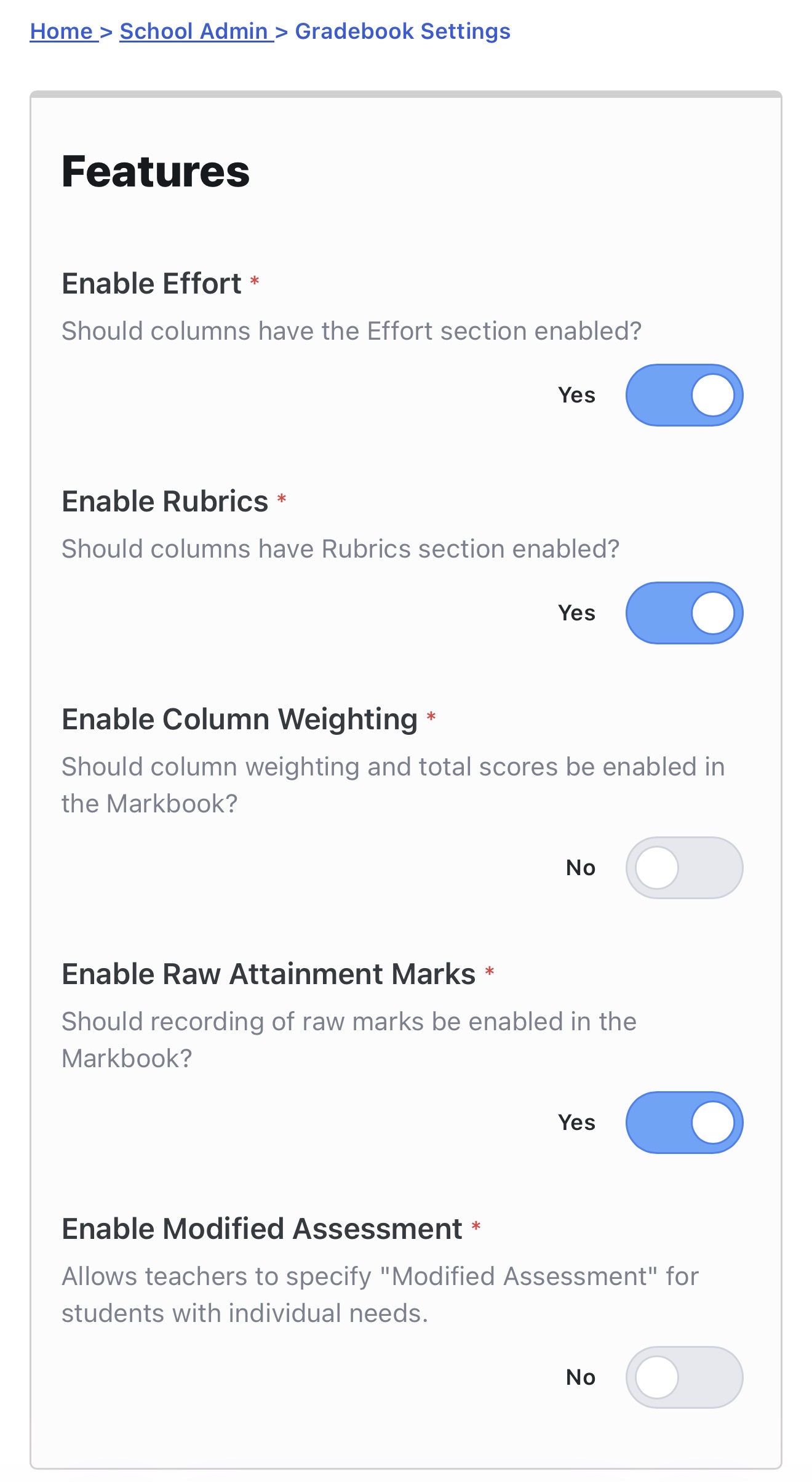
Go to Admin → School Admin → Gradebook Settings
and enable Raw Attainment Marks.
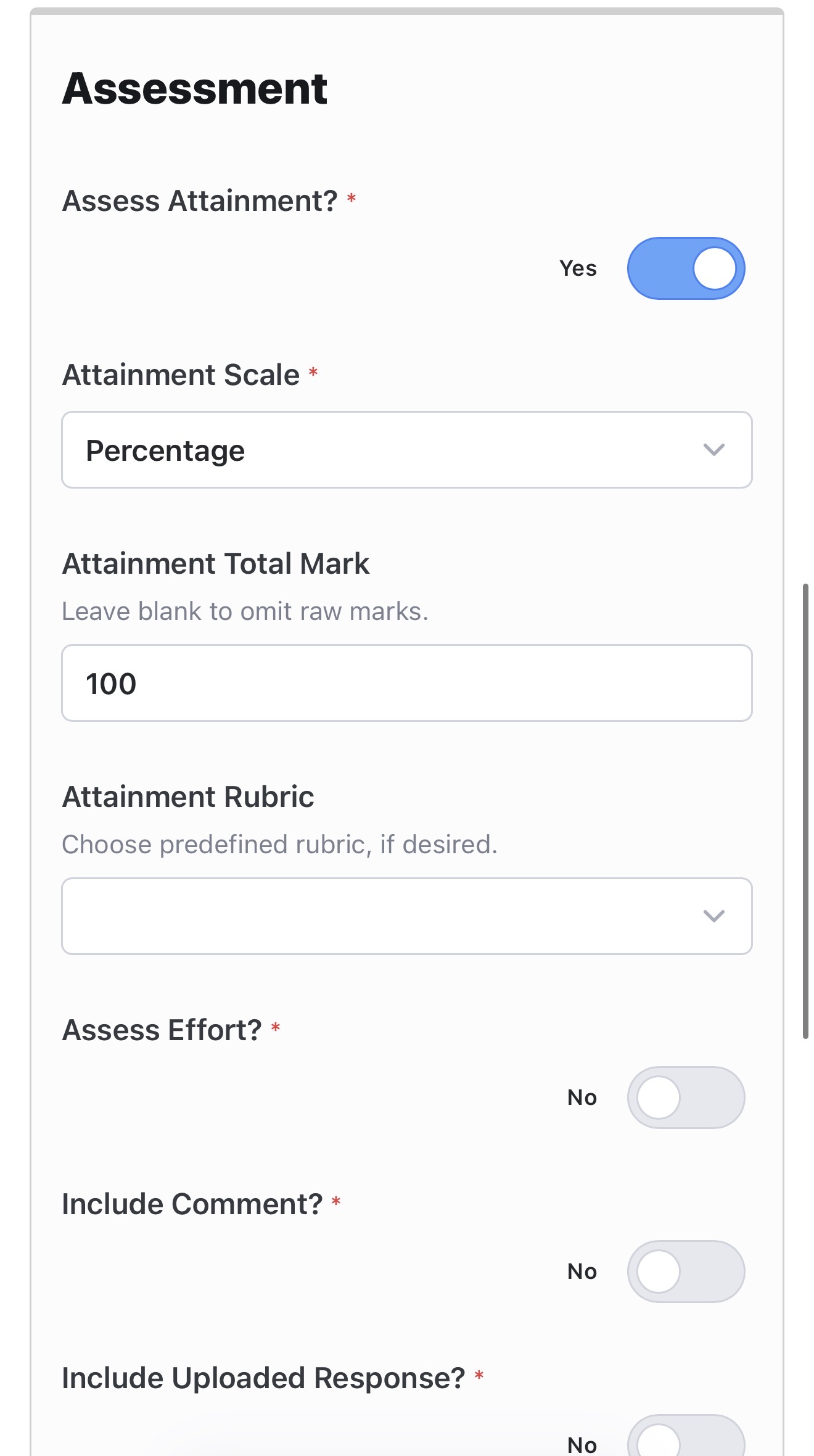
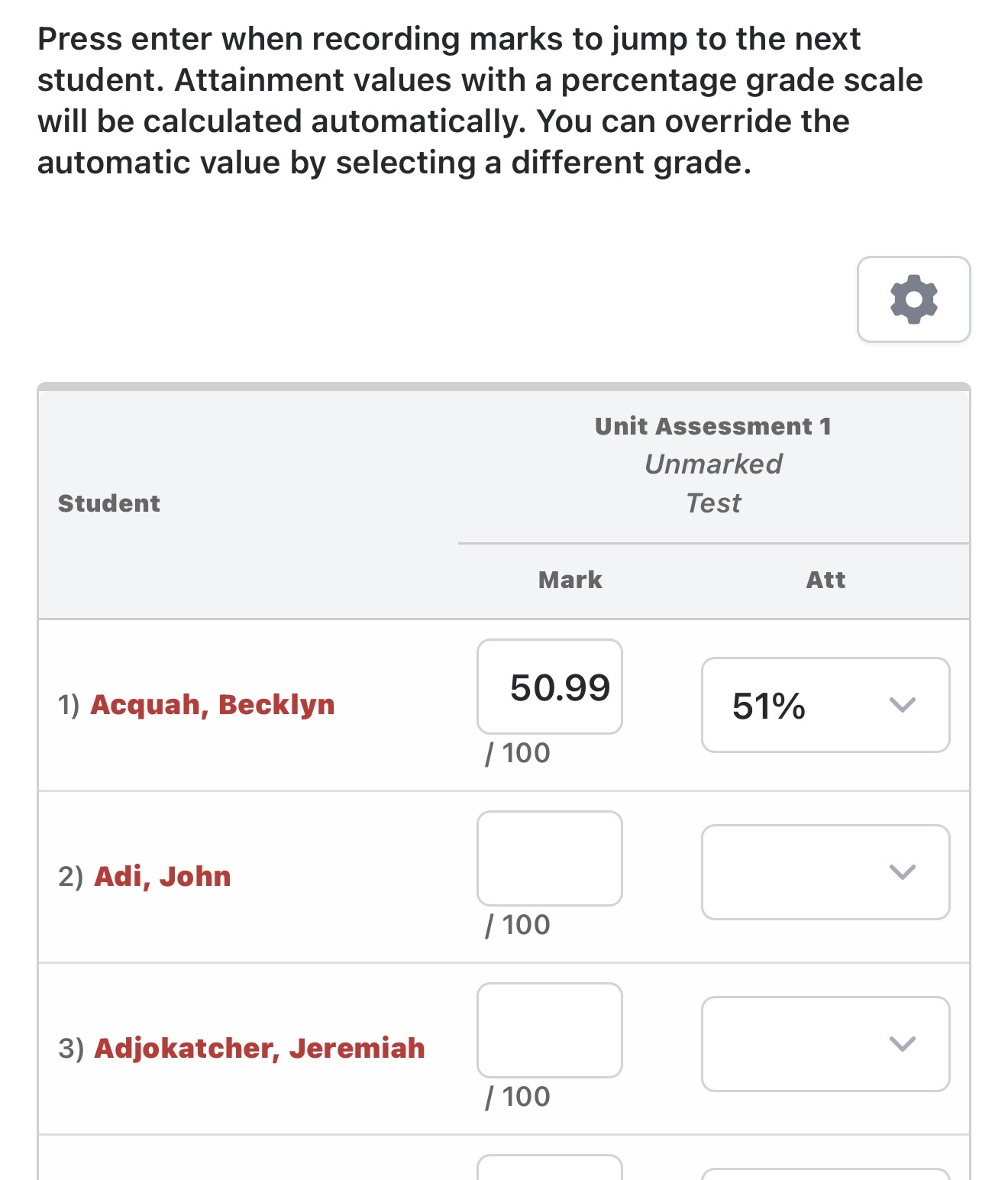
Next, create a Markbook/Gradebook column and set the Attainment Total Mark to 100.
You will then be able to enter decimal values when grading.
I hope this helps.
Hello Ali,
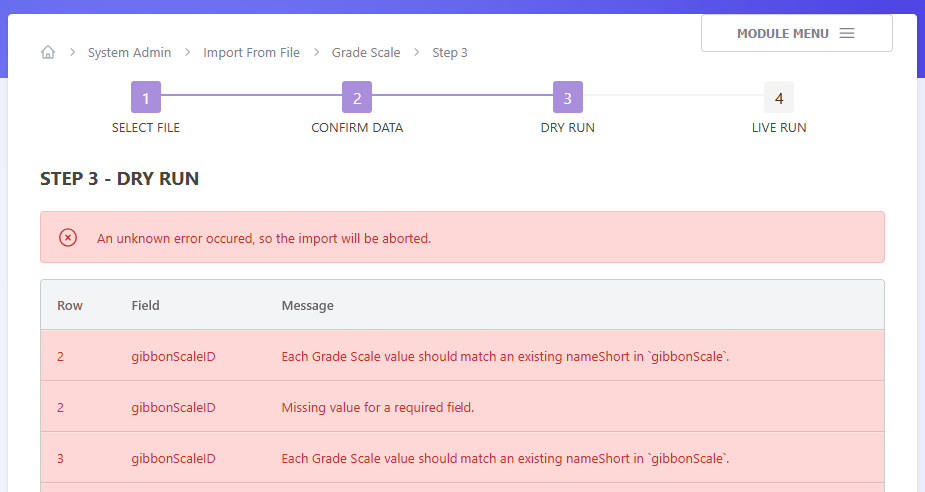
I am messing around with a Gibbon test server and was experiencing a similar question. With your instructions it should be easily solvable, but sadly my import has failed. Maybe someone here can point me into the right direction.
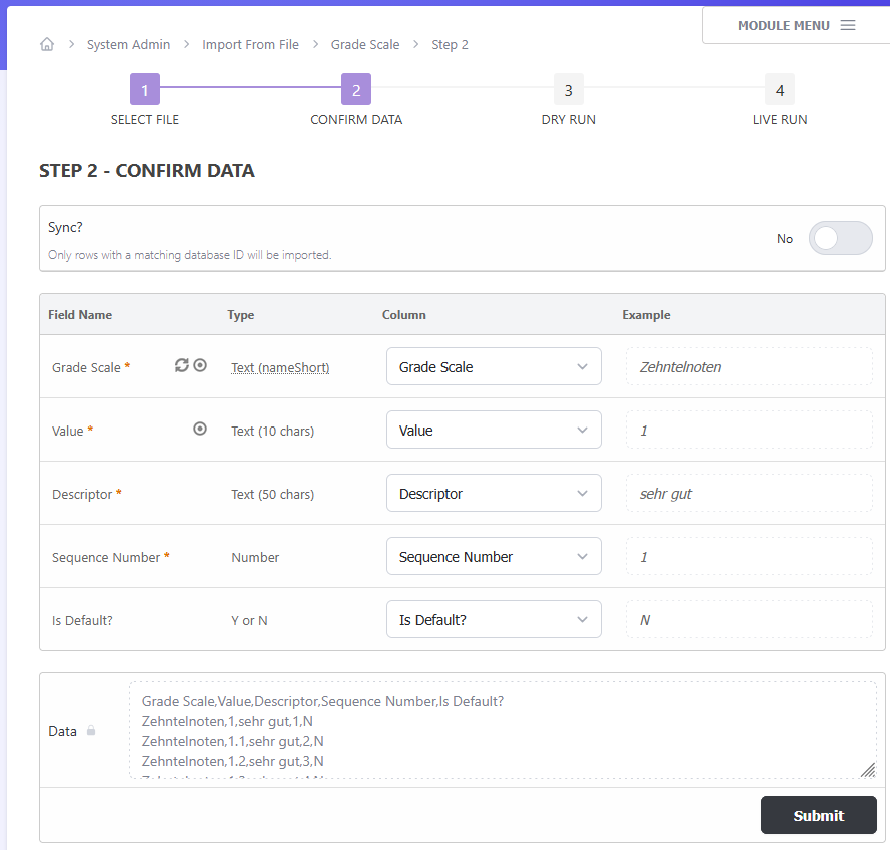
For the file creation I used the empty download option. Unsurprisingly Step 2 is trivial.
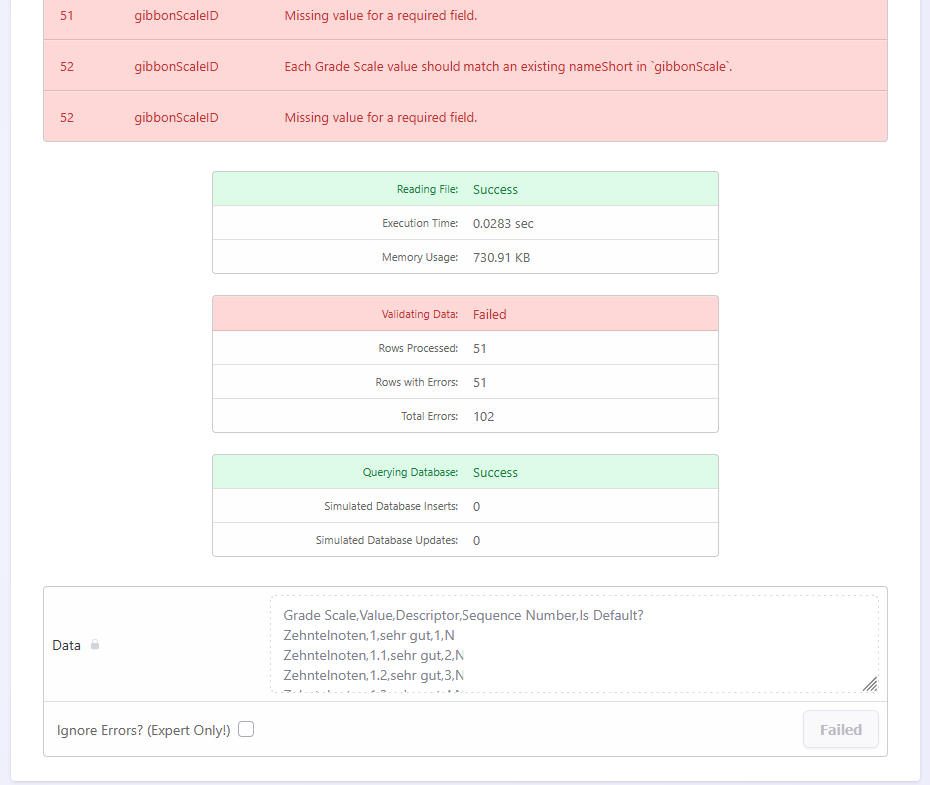
Step 3 fails and I can see it might have to do with a missing short name. But there is no indication on how to include this information correctly.
cheers
Lukas
Hi Lukas @Unlearned2348,
Thanks for your question. Each grade scale must be linked to a scale in the gibbonScale table. For example, a scale could be International Baccalaureate (nameShort - IB), and the grade scales could be values such as 1, 2, 3, 4, 5, etc. Looking at your error message - I am guessing you need to use the shortName of the gibbonScale as the Grade Scale such as IB. These nameShort should be same as the one you enter while creating the gibbon Scale in School Admin → Manage Grade Scales → Add Scale. I hope that can fix the issue. Thanks.
Thank you, that was it. replacing the Grade Scale name with the correct shortname did the trick.